
My Introduction to Mastering Squarespace E-commerce
Squarespace e-commerce is an all-in-one platform that lets you build, manage, and grow a beautiful online store — without needing to write a single line of code.
Here's a quick snapshot of what you can do with it:
Sell anything — physical products, digital downloads, services, subscriptions, and memberships
Choose a plan — Business, Commerce Basic, or Commerce Advanced, depending on your needs
Get paid — connect Squarespace Payments, Stripe, PayPal, or Square
Manage your store — handle inventory, shipping, taxes, and orders from one dashboard
Market your store — use built-in SEO tools, email campaigns, and abandoned cart recovery
Start for free — try the platform with a 14-day free trial before committing
If you're a small business owner or marketing manager trying to move your brand online — or you're frustrated with an outdated website that just isn't converting — Squarespace gives you the design quality and commerce tools to fix that fast.
One thing I hear often from business owners is this: "Website design is the most important factor in choosing an e-commerce platform. It sets the first impression, draws your customers in, and tells the story of your brand." That rings true in my experience every single time.
Squarespace isn't just pretty, though. It's genuinely functional. And when it's set up correctly, it can compete with much more complex platforms — especially for small to mid-sized stores that prioritize brand storytelling and user experience.
I'm Christian Daniel, a Squarespace Circle Gold Partner and the founder of Christian Daniel Designs, LLC, with over 20 years of experience in web design — including building and optimizing Squarespace ecommerce stores for hospitality brands, creative businesses, and startups nationwide. In this guide, I'll walk you through everything I've learned so you can launch with confidence.
How I Choose the Right Plan for My Squarespace Ecommerce Store
Selecting the right plan is the first hurdle I help my clients clear. While Squarespace offers four main website plans, only three of them truly support squarespace ecommerce functionality. If you pick the wrong one, you might end up paying more in transaction fees than you would have spent on a higher-tier subscription.

I generally categorize the plans into three buckets based on the stage of the business:
The Business Plan: This is the entry point for selling. It’s great for businesses that primarily offer services but want to sell a few products on the side. However, I always warn my clients about the 3% transaction fee on every sale. If you're doing more than a few thousand dollars in sales a month, this fee quickly outpaces the cost of upgrading.
Commerce Basic: This is where serious selling begins. The biggest perk? 0% transaction fees from Squarespace. You also get powerful tools like customer accounts, which allow shoppers to save their details for faster checkout, and the ability to sync your products with Instagram and Facebook.
Commerce Advanced: This is for the power users. I recommend this plan if you need Abandoned Cart Recovery, which automatically emails customers who left items in their cart. It also includes advanced shipping features, like real-time carrier rates, and the ability to sell subscriptions.
Feature | Business | Commerce Basic | Commerce Advanced |
|---|---|---|---|
Transaction Fee | 3% | 0% | 0% |
Product Limits | Unlimited | Unlimited | Unlimited |
Customer Accounts | No | Yes | Yes |
Abandoned Cart Recovery | No | No | Yes |
Sell Subscriptions | No | No | Yes |
Advanced Shipping | No | No | Yes |
I’ve found that for most of my NYC-based small business clients, starting with Commerce Basic provides the best balance of cost and functionality. It removes the sting of transaction fees while providing the professional "Customer Account" feature that builds trust with repeat buyers.
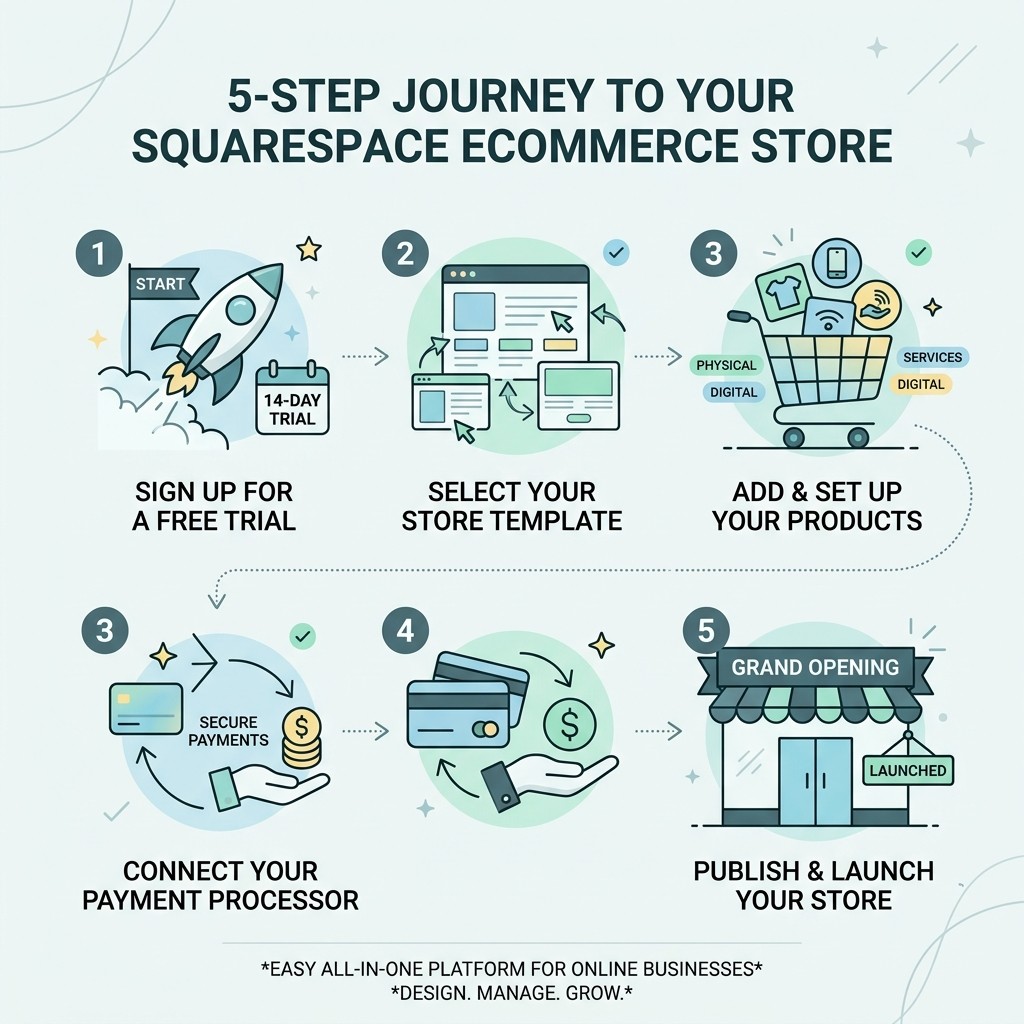
My Step-by-Step Guide to Launching My Store
Once I've locked in a plan, the real fun begins: building the storefront. I always start by browsing the e-commerce template library. Squarespace templates are world-class, but I don't just look for "pretty." I look for a layout that matches the inventory size. For a brand with only five products, a minimalist two-column layout works wonders. For a large catalog, I look for templates with robust sidebar filtering.
Setting the Foundation
I never launch a store on a "squarespace.com" subdomain. It looks unprofessional. I always start by finding a custom domain name that is short, memorable, and reflects the brand.
Next, I define what I'm selling. Squarespace e-commerce isn't just for boxes and bubble wrap. I use it to sell:
Physical Goods: Apparel, home decor, or packaged food.
Digital Downloads: E-books, music, or photography presets.
Services and Appointments: I integrate Acuity Scheduling to let clients book time directly on the site.
Memberships: I use Member Areas to gate premium content, like online courses or exclusive newsletters.
How I Configure Payments and Taxes in My Squarespace E-commerce Store
Getting paid should be the easiest part of the process. I've been incredibly impressed with the rollout of Squarespace Payments, which is currently available in the US. It allows me to manage everything—payouts, disputes, and settings—right from the Squarespace dashboard. It supports major credit cards, Apple Pay, and even "Buy Now, Pay Later" options like Klarna.
For international clients or those with existing accounts, I also integrate:
Stripe: The gold standard for credit card processing.
PayPal: Essential for global reach, as many shoppers feel safer using it.
Square: Perfect for my clients who also sell at local markets or pop-up shops. By connecting a Square reader, I can sync in-person sales with online inventory.
Taxes used to be a nightmare, but I now rely on automatic tax rates. Squarespace calculates sales tax in real-time for over 100 countries and all US states. For more complex bookkeeping, I often connect the TaxJar extension to automate the filing process.
I also take the time to customize the checkout. I’ll add an express checkout button to reduce friction and create a custom checkout form if I need to collect specific info, like gift messages or special delivery instructions.
How I Master Inventory and Shipping for My Squarespace E-commerce Store
Logistics can make or break an online business. I start by setting up fulfillment profiles. This allows me to create specific shipping rules for different products. For example, I might offer "Free Shipping" on jewelry but "Weight-Based Shipping" on heavy ceramic pots.
I leverage the direct USPS and UPS integrations to purchase and print shipping labels directly from the Squarespace dashboard. This is a massive time-saver for small business owners who don't want to stand in line at the post office.
If I'm dealing with a client who has hundreds of SKUs, I use bulk editing techniques. Instead of clicking into every product, I export the inventory to a CSV file, make my changes in a spreadsheet, and re-import it.
To expand functionality, I often look into inventory management extensions. These third-party tools can help with everything from dropshipping to wholesale pricing. For my local NYC clients, I always enable the local pickup option. It’s a great way to connect with the community and save the customer a few dollars on shipping.
Finally, I use stock urgency labels. You've seen them: "Only 2 left!" These are built into Squarespace and are incredibly effective at nudging a hesitant shopper to hit that "Buy" button.
My Design Strategies for Conversions: Lessons I've Learned
In my 20 years of design, I’ve learned that a beautiful site that doesn't convert is just an expensive art project. When I build a Squarespace e-commerce store, I follow a strict hierarchy of design.
Visual Hierarchy: The most important information (the product name, price, and "Add to Cart" button) should be the first thing the eye sees. I use bold fonts and high-contrast colors for my CTAs.
High-Quality Photography: I tell all my clients: "If your photos are bad, your sales will be bad." I use high-resolution images with consistent lighting. I also love using hover effects—where the image changes to a different angle when you mouse over it—to give the shopper more detail without extra clicks.
Mobile Optimization: Over 50% of web traffic is mobile. I ensure every store I build looks just as good on an iPhone as it does on a 27-inch iMac. Squarespace templates are mobile-responsive by default, but I always manually tweak the mobile padding and font sizes for perfection.
The Power of Negative Space: Don't clutter the page. I use ample whitespace (negative space) to let the products "breathe." This creates a premium, high-end feel.
Social Proof: I always integrate customer reviews. Seeing that 50 other people loved a product is often the final push a customer needs. I also include media quotes or "As Seen In" logos to build instant authority.
How I Scale My Business with Built-in Marketing Tools
Once the store is live, the focus shifts to growth. I don't just wait for people to find the site; I go get them.
SEO is my first priority. I don't just rely on the defaults. I write unique SEO descriptions for every single product, focusing on keywords that my customers are actually searching for. I also ensure the site title and page descriptions are optimized for local NYC searches if that's the target market.
Next, I dive into Email campaigns. Squarespace has a built-in email tool that pulls your product images and branding directly into the editor. I set up automated campaigns for:
Welcome Emails: Sent the moment someone signs up for the newsletter.
Abandoned Cart Recovery: A gentle nudge to people who left items behind. This single feature can increase revenue by up to 20%.
Promotional Discounts: I create "Limited Time Only" discount codes to drive sales during holidays or product launches.
I also leverage social media integration. I connect the store to Instagram and Facebook so customers can shop directly from their feeds. For clients who want to sell merchandise without the headache of inventory, I use the print-on-demand integration with Printful. I design the products, and Printful handles the printing and shipping only when an order comes in.
To track all of this, I use Squarespace Analytics. I don't just look at total sales; I analyze the purchase funnel. Where are people dropping off? If 90% of people leave at the shipping page, I know my shipping rates are too high. If they leave at the product page, I know my descriptions or photos need work.
My Frequently Asked Questions about Squarespace E-commerce
Why I Believe Squarespace is Ideal for Small Businesses
I often get asked if Squarespace is "powerful enough" for a real business. My answer is a resounding yes. For small to mid-sized businesses, the ease of use is a feature, not a limitation. You don't need a full-time developer to change a price or update a banner. The maintenance costs are predictable, and the security (SSL, hosting, updates) is all handled for you. It allows you to focus on your business, not your backend.
What I Know About Transaction Fees on Squarespace
This is a point of confusion for many. To be clear:
Personal Plan: No e-commerce features.
Business Plan: 3% transaction fee paid to Squarespace + payment processor fees (usually ~2.9% + 30 cents).
Commerce Basic & Advanced: 0% transaction fee to Squarespace. You only pay the payment processor (Stripe/PayPal/Squarespace Payments). If you plan on selling more than $100 a month, the Commerce Basic plan pays for itself.
How I Sell Digital Products and Subscriptions
Selling digital products like e-books or templates is incredibly smooth. Once the customer pays, Squarespace sends them a secure download link that expires after 24 hours. For subscriptions, I set up recurring billing. This is perfect for "Box of the Month" clubs or ongoing service retainers. I can set the frequency (weekly, monthly, annually) and the system handles the rest.
My Conclusion
Building a successful Squarespace e-commerce store is a journey of a thousand small steps, but the result is a powerful asset that works for you 24/7. Before you hit that "Publish" button, run through my final checklist:
Are your product photos high-resolution and consistent?
Have you tested the checkout process yourself?
Is your SEO description filled out for every page?
Is your contact information easy to find?
Professional design isn't just about looking good; it's about building a bridge of trust between you and your customer. At Christian Daniel Designs, I specialize in digital storytelling—using design and video to turn casual visitors into loyal brand advocates. Whether you are in Queens, Manhattan, or anywhere else in the US, your online store is your digital storefront. Make sure it tells the right story.
If you're still feeling overwhelmed or want a professional eye to take your store to the next level, you might want to see how different experts approach the platform. Check out my guide on The 10 Best Squarespace Designers Compared to find the right fit for your project.
Let's build something thriving together.